
打开工作区 ↗
DRONECOLLAB · TECHNOGIS

充值 DroneCollab 积分

在 Billing 创建充值、核对发票、完成付款,并检查更新后的积分余额。

充值 DroneCollab 积分

充值 DroneCollab 积分 · 创建充值
Billing · Top up Points · Create Deposit
1创建充值
2核对发票
3完成付款
4检查付款状态
5检查新余额

充值 DroneCollab 积分

点击截图可放大

1
Billing / Top up Points / Select Value / Create Deposit

创建充值

从工作空间个人资料打开 Billing,在 Top up Points 的 Select Value 中选择金额。

点击 Create Deposit 生成发票。
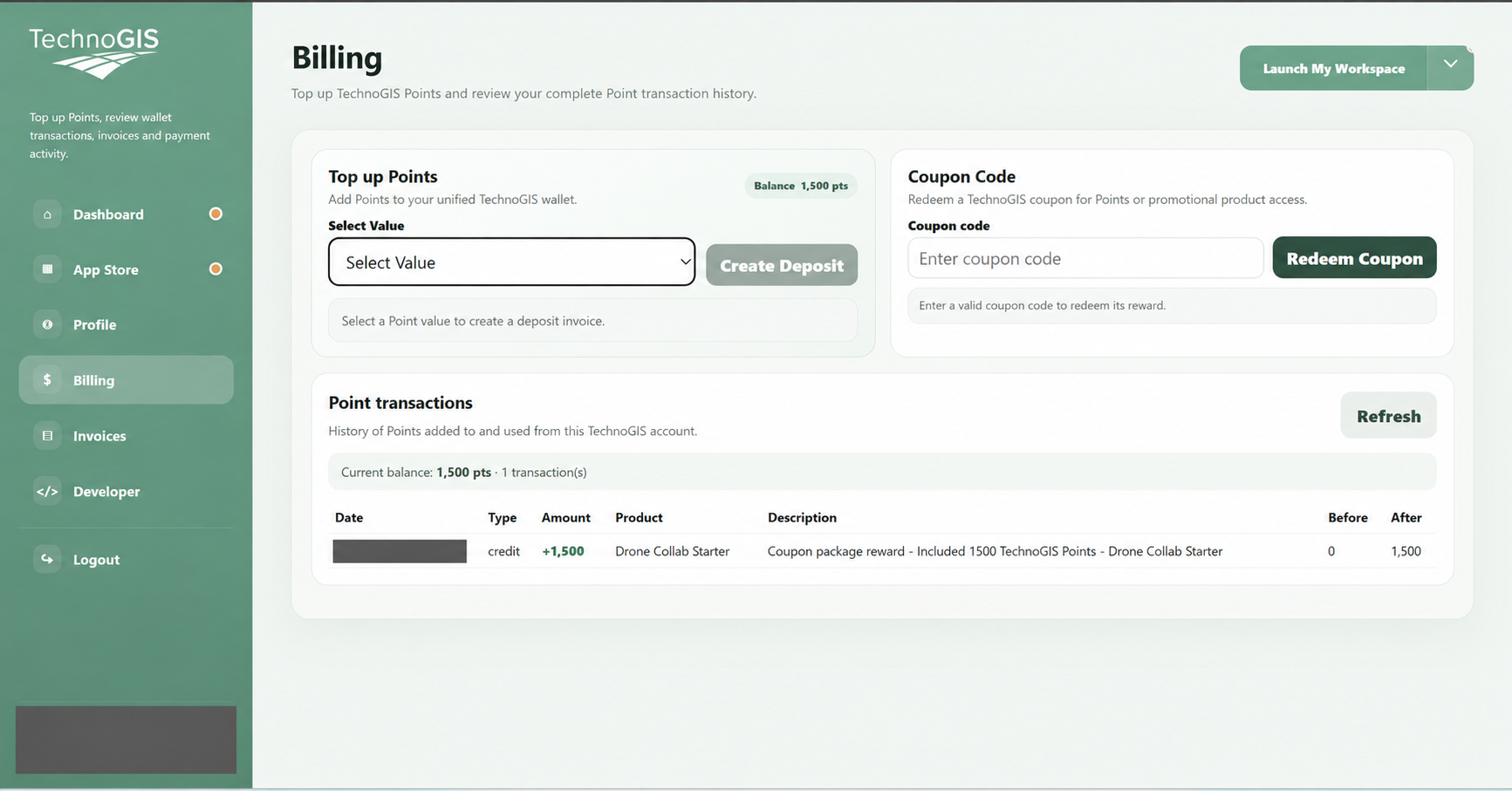
充值 DroneCollab 积分 · 创建充值
Billing / Top up Points / Select Value / Create Deposit
2
Invoices / Payment Method / Pay Now

核对发票

核对积分和总额。PENDING PAYMENT 表示仍需付款。

选择可用的支付方式,如 QRIS & Virtual Bank 或 PayPal,然后点击 Pay Now。
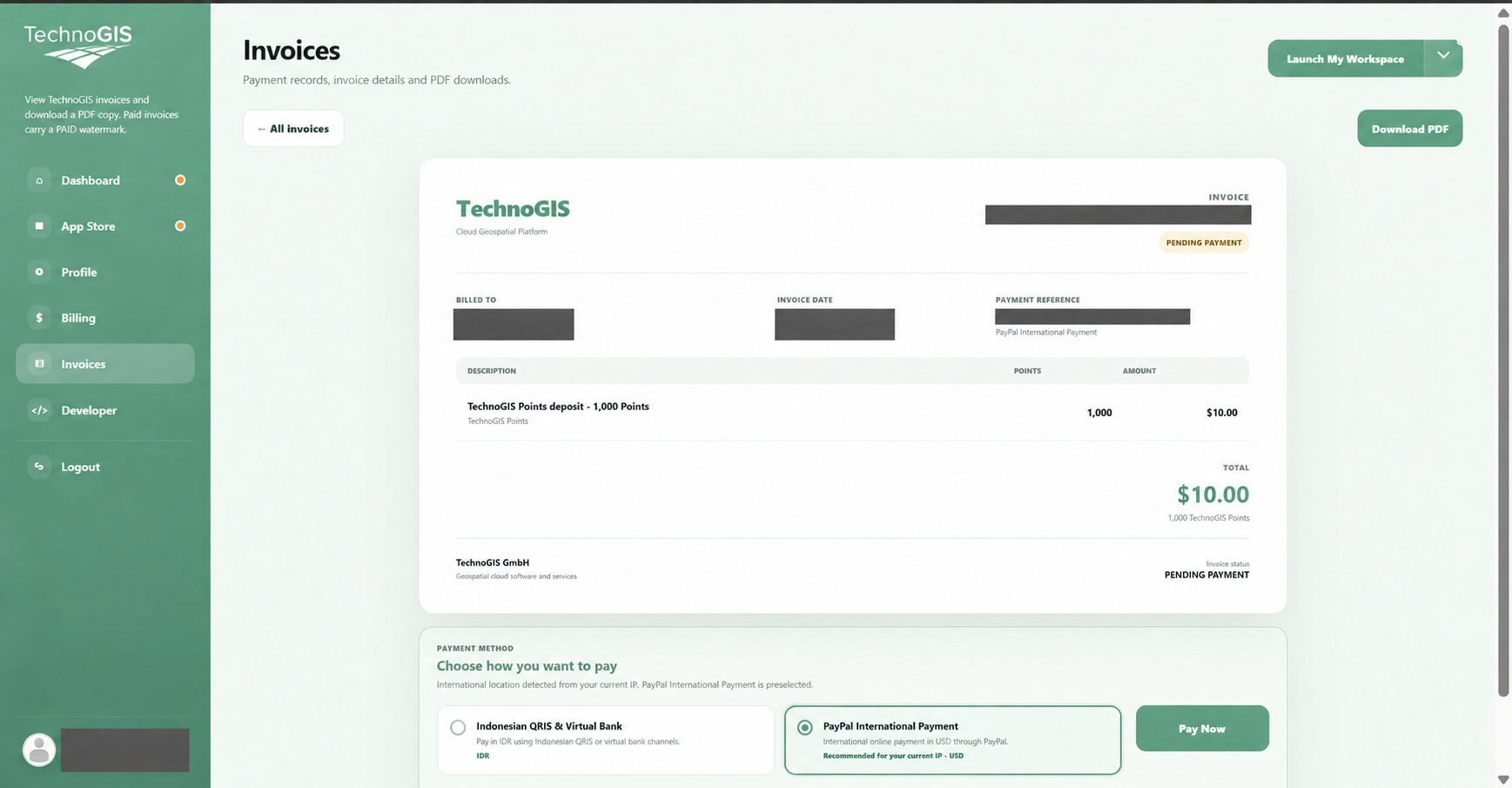
充值 DroneCollab 积分 · 核对发票
Invoices / Payment Method / Pay Now
3
Payment Provider / Pay / Return to TechnoGIS

完成付款

按照所选支付平台操作。示例显示 PayPal 结账页面。

核对金额,点击 Pay,完成后返回 TechnoGIS。
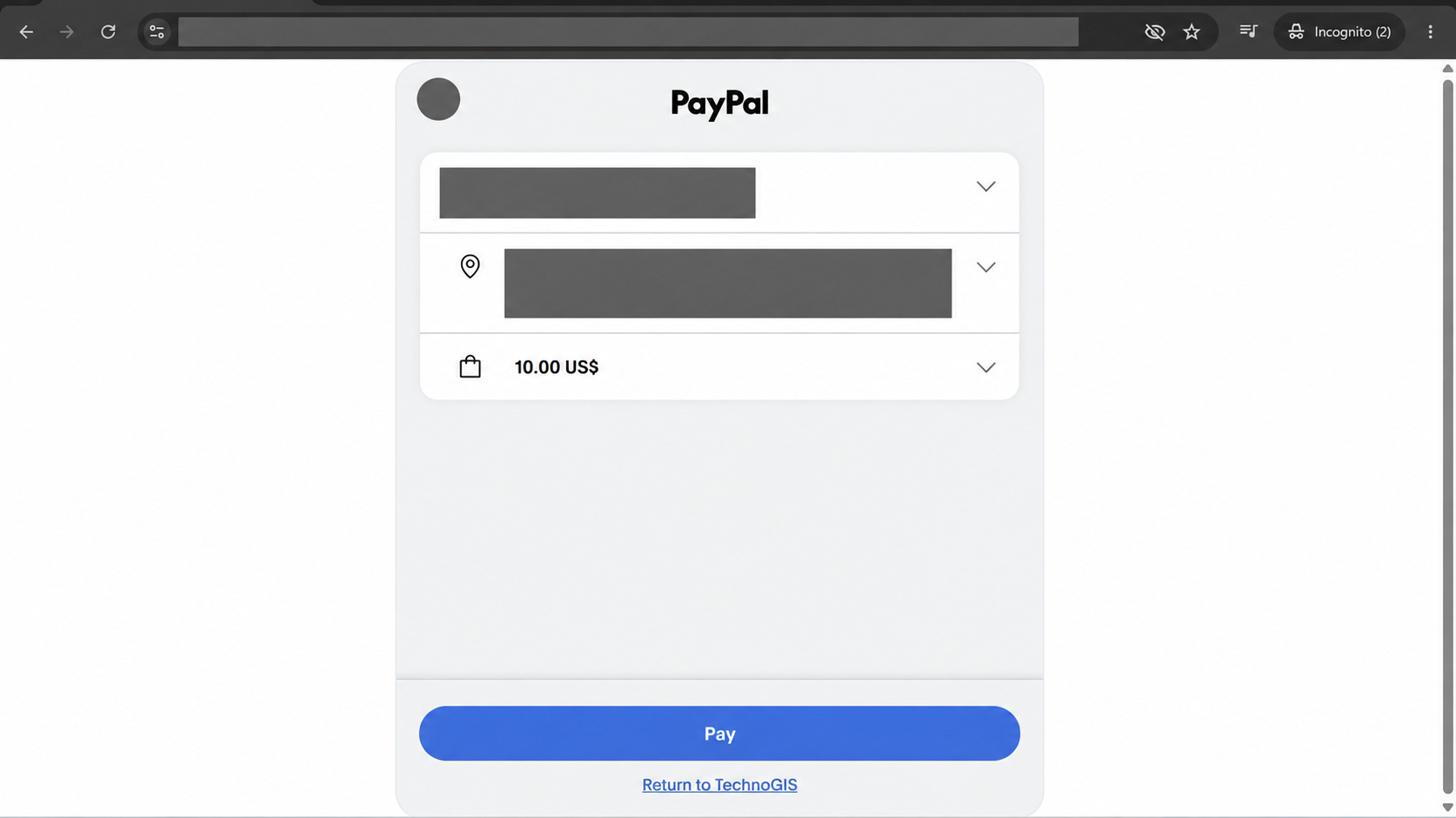
充值 DroneCollab 积分 · 完成付款
Payment Provider / Pay / Return to TechnoGIS
4
Invoices / PAID / FULFILLED / Download PDF

检查付款状态

返回 Invoices 并打开充值发票。

确认 PAID 水印和 FULFILLED 状态。如需副本,点击 Download PDF。
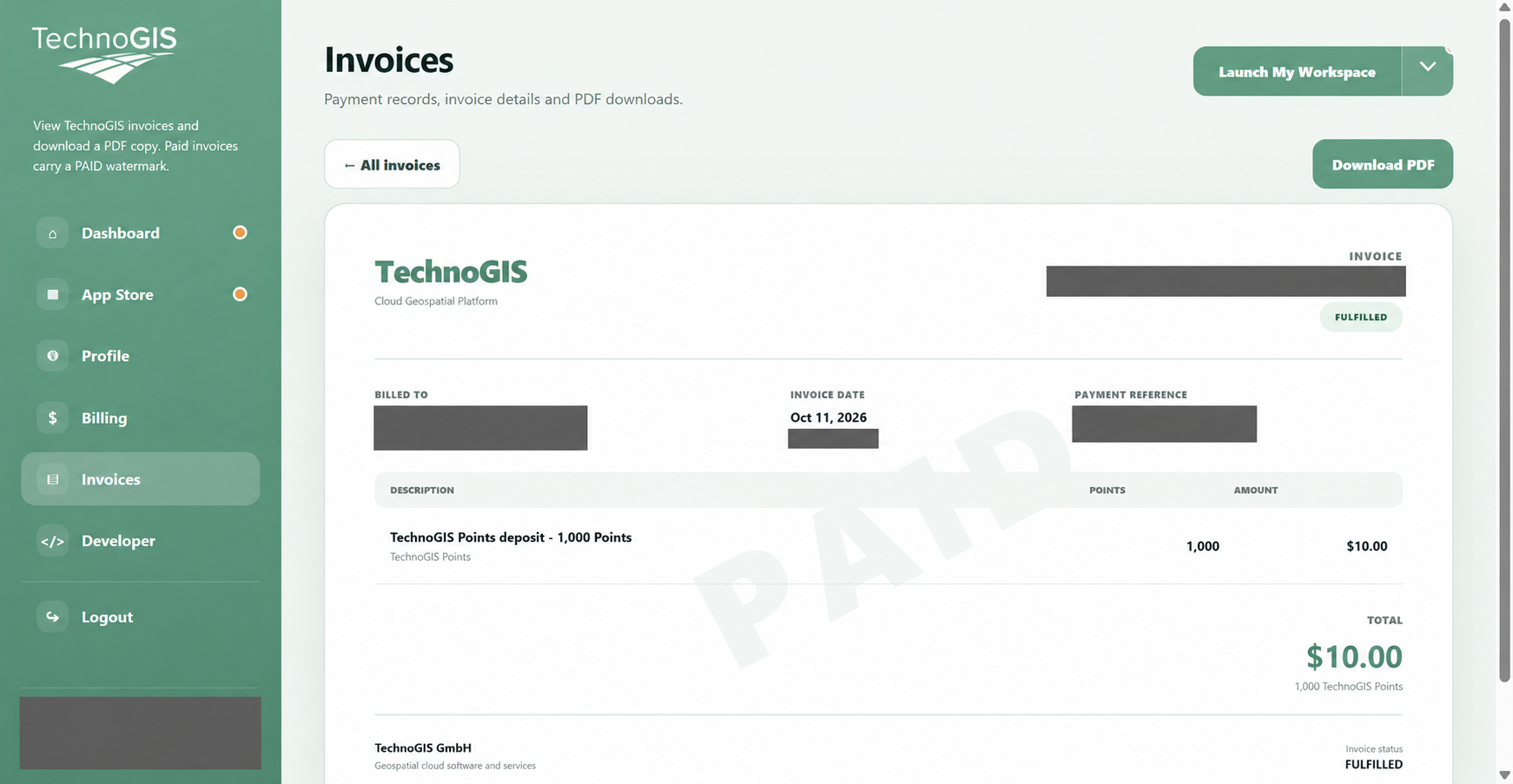
充值 DroneCollab 积分 · 检查付款状态
Invoices / PAID / FULFILLED / Download PDF
5
Billing / Point transactions / Refresh

检查新余额

再次打开 Billing,必要时点击 Refresh。

在 Point transactions 查看充值记录,并比较 Before、After 和当前余额。
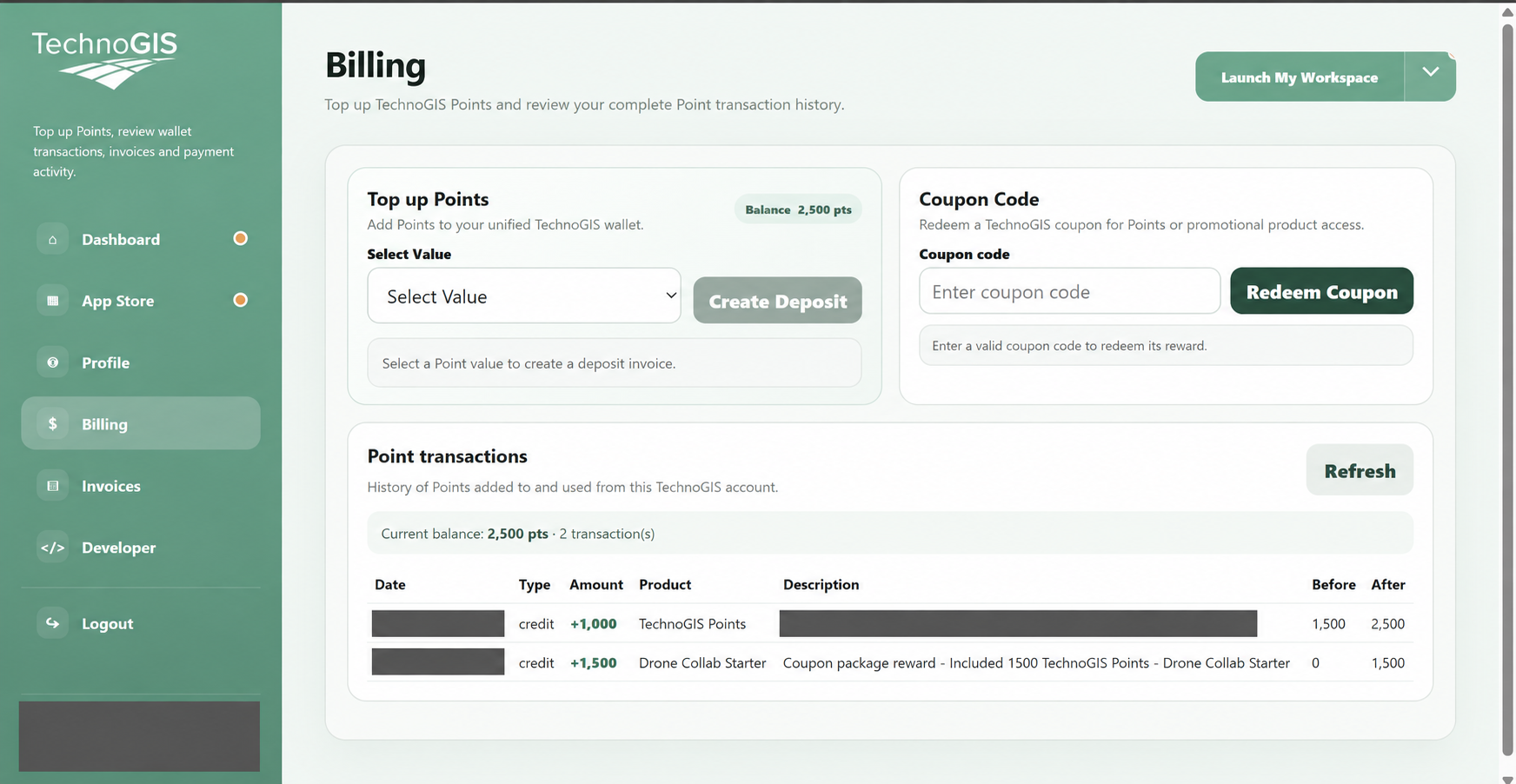
充值 DroneCollab 积分 · 检查新余额
Billing / Point transactions / Refresh

充值 DroneCollab 积分

图片金额仅为示例,请以您的发票为准。截图中的个人信息已遮盖。

打开工作区 ↗