
Open workspace ↗
DRONECOLLAB · TECHNOGIS

Top up DroneCollab points

Create a deposit in Billing, review your invoice, complete payment and check your updated point balance.

Top up DroneCollab points

Top up DroneCollab points · Create a deposit
Billing · Top up Points · Create Deposit
1Create a deposit
2Review the invoice
3Complete payment
4Check payment status
5Verify the new balance

Top up DroneCollab points

Click screenshots to enlarge

1
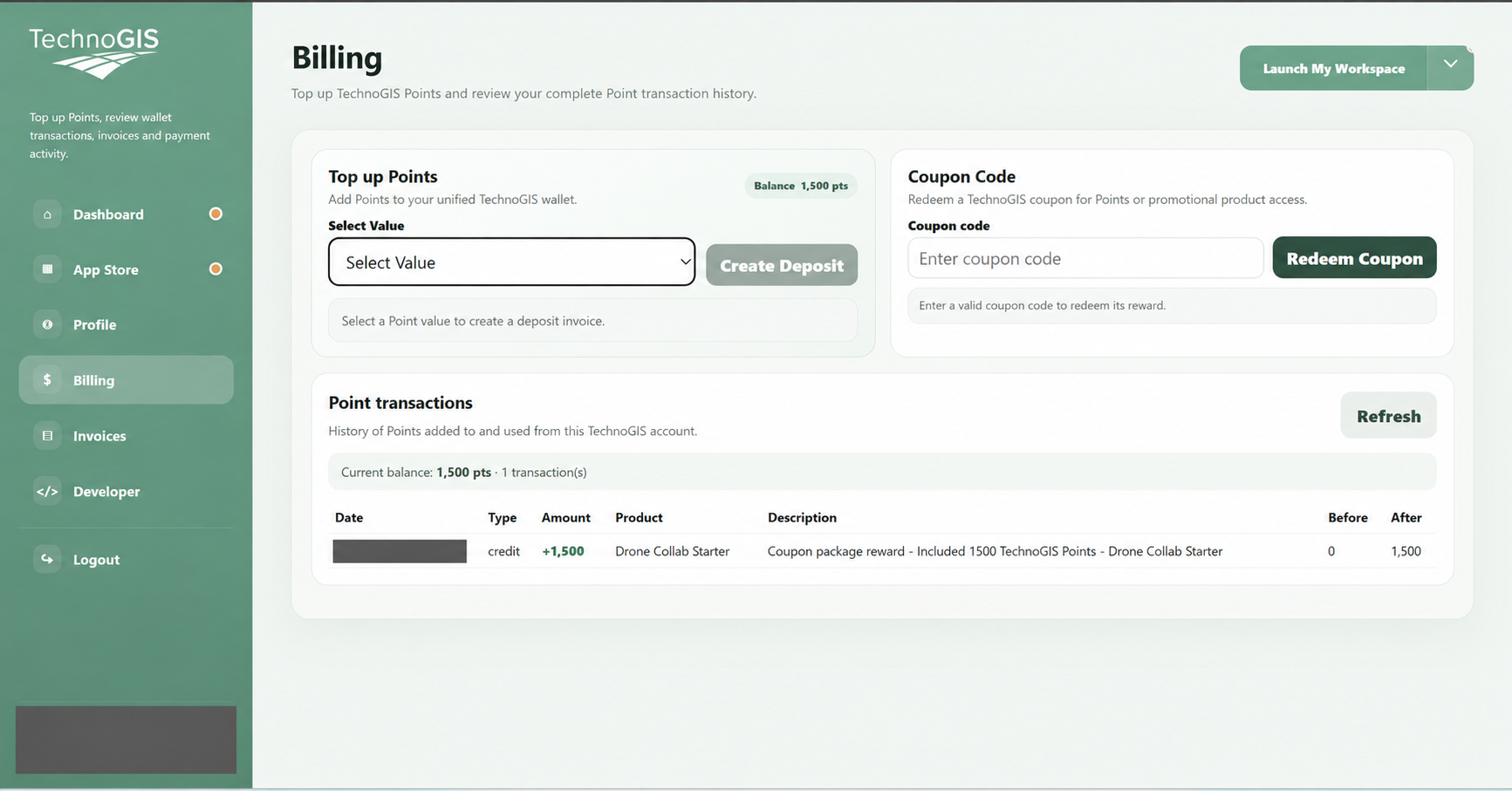
Billing / Top up Points / Select Value / Create Deposit

Create a deposit

Open Billing from your workspace profile. In Top up Points, choose an amount under Select Value.

Click Create Deposit to generate the invoice.
Top up DroneCollab points · Create a deposit
Billing / Top up Points / Select Value / Create Deposit
2
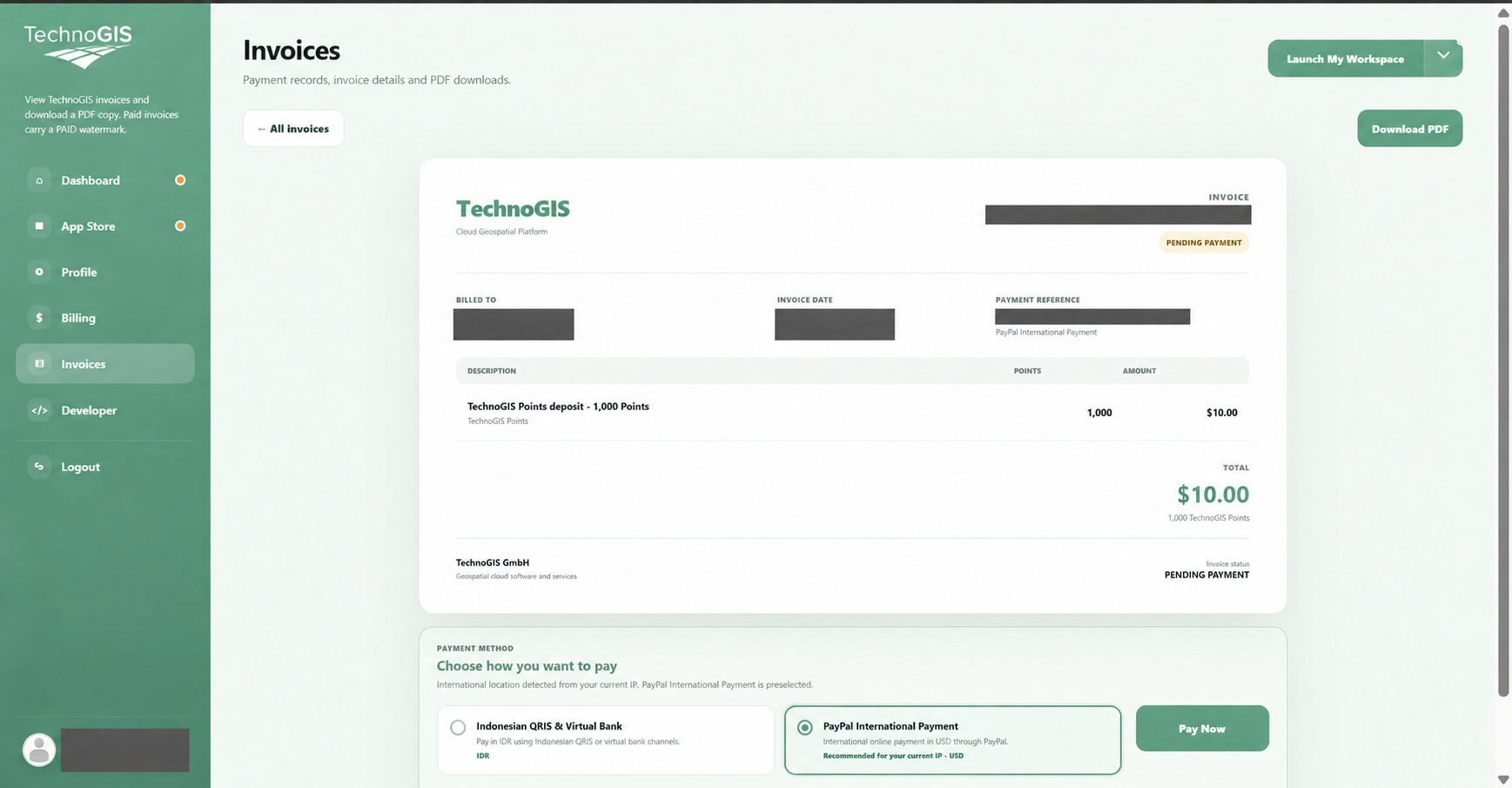
Invoices / Payment Method / Pay Now

Review the invoice

Check the points and total on the invoice. PENDING PAYMENT means payment is still required.

Choose an available payment method, such as QRIS & Virtual Bank or PayPal, then click Pay Now.
Top up DroneCollab points · Review the invoice
Invoices / Payment Method / Pay Now
3
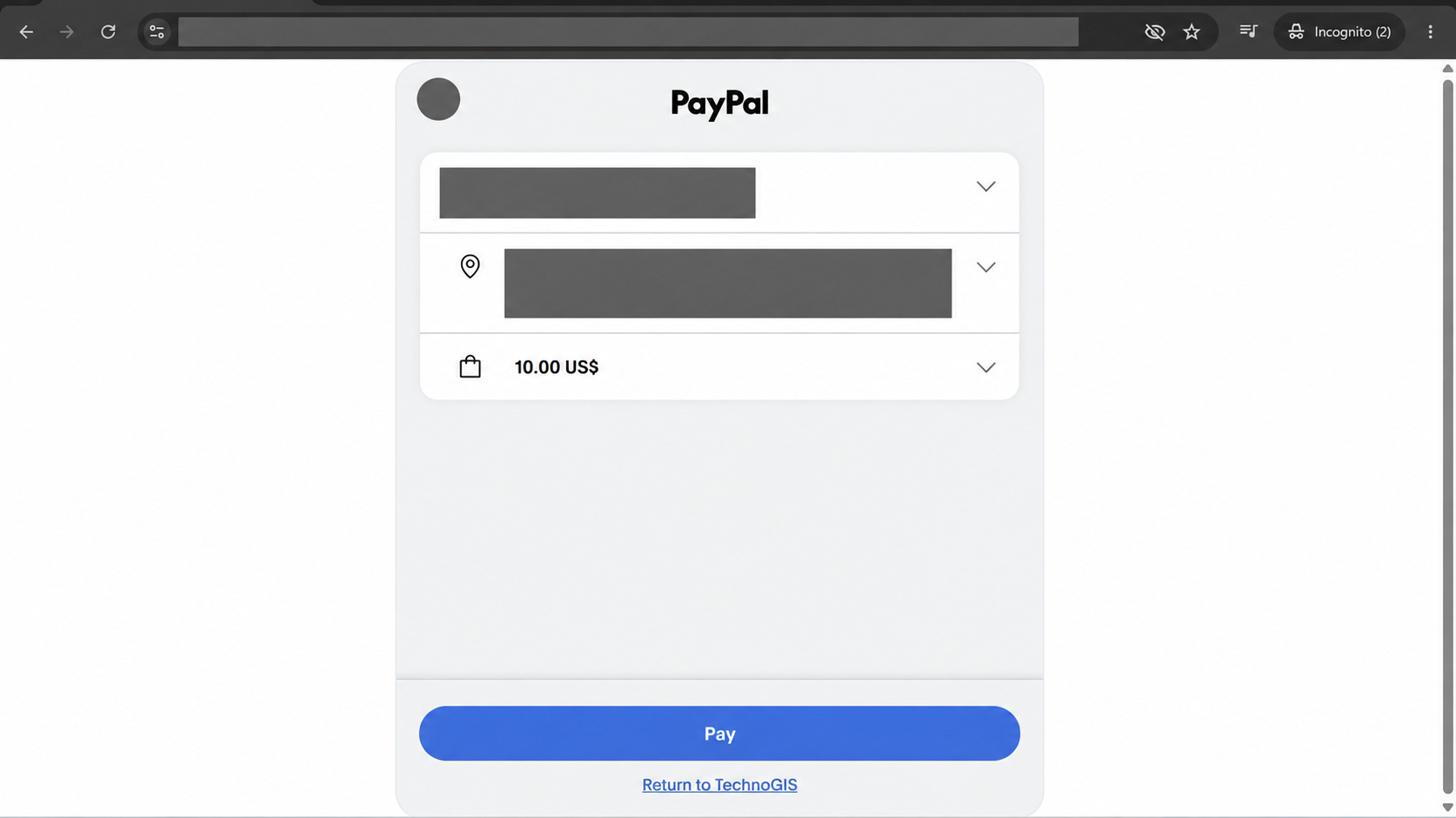
Payment Provider / Pay / Return to TechnoGIS

Complete payment

Follow the selected payment provider. The example shows PayPal checkout.

Check the amount, click Pay and return to TechnoGIS when payment finishes.
Top up DroneCollab points · Complete payment
Payment Provider / Pay / Return to TechnoGIS
4
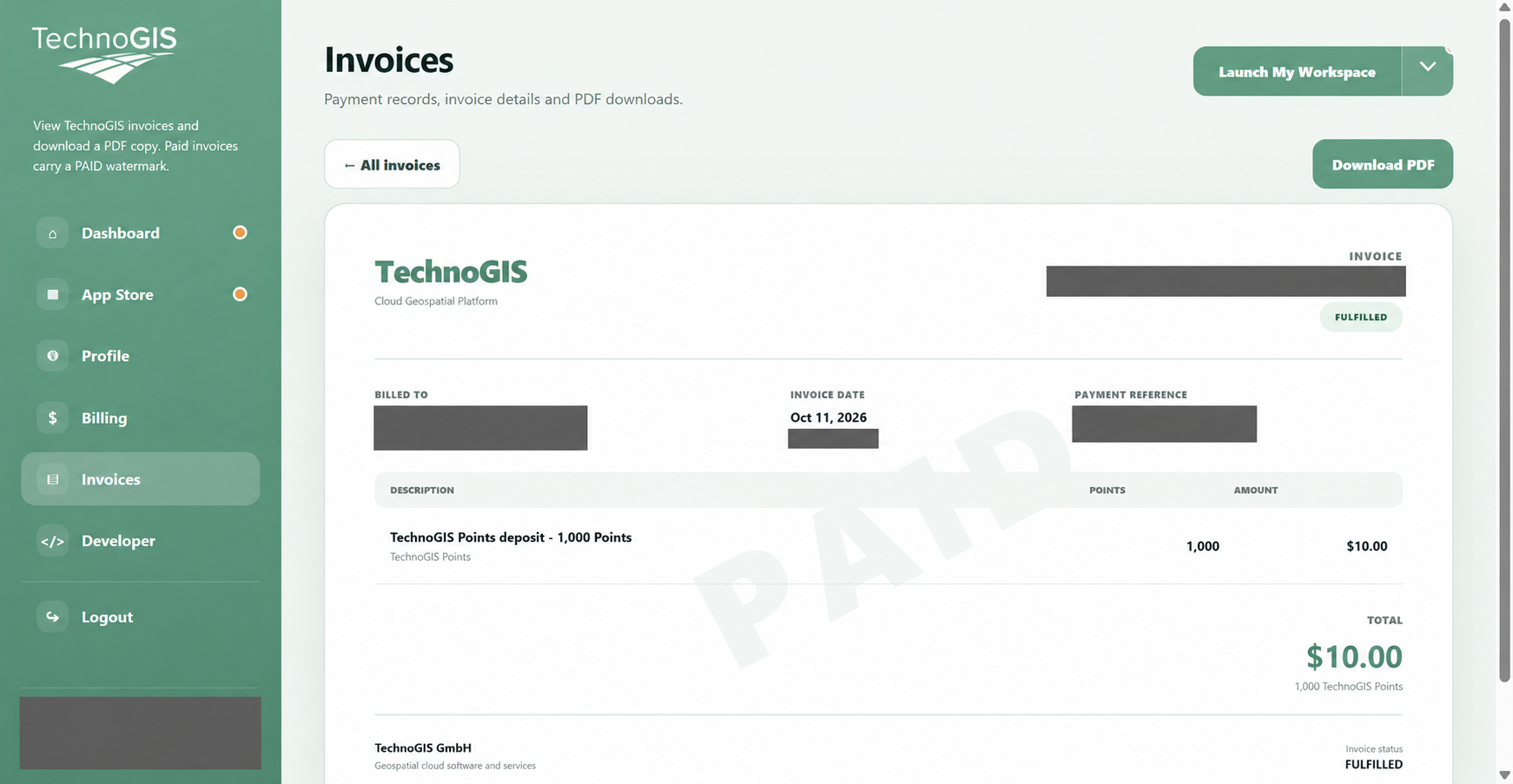
Invoices / PAID / FULFILLED / Download PDF

Check payment status

Return to Invoices and open the deposit invoice.

Confirm the PAID watermark and FULFILLED status. Download PDF if you need a copy.
Top up DroneCollab points · Check payment status
Invoices / PAID / FULFILLED / Download PDF
5
Billing / Point transactions / Refresh

Verify the new balance

Open Billing again and click Refresh if needed.

Check the credited deposit in Point transactions and compare Before, After and your current balance.
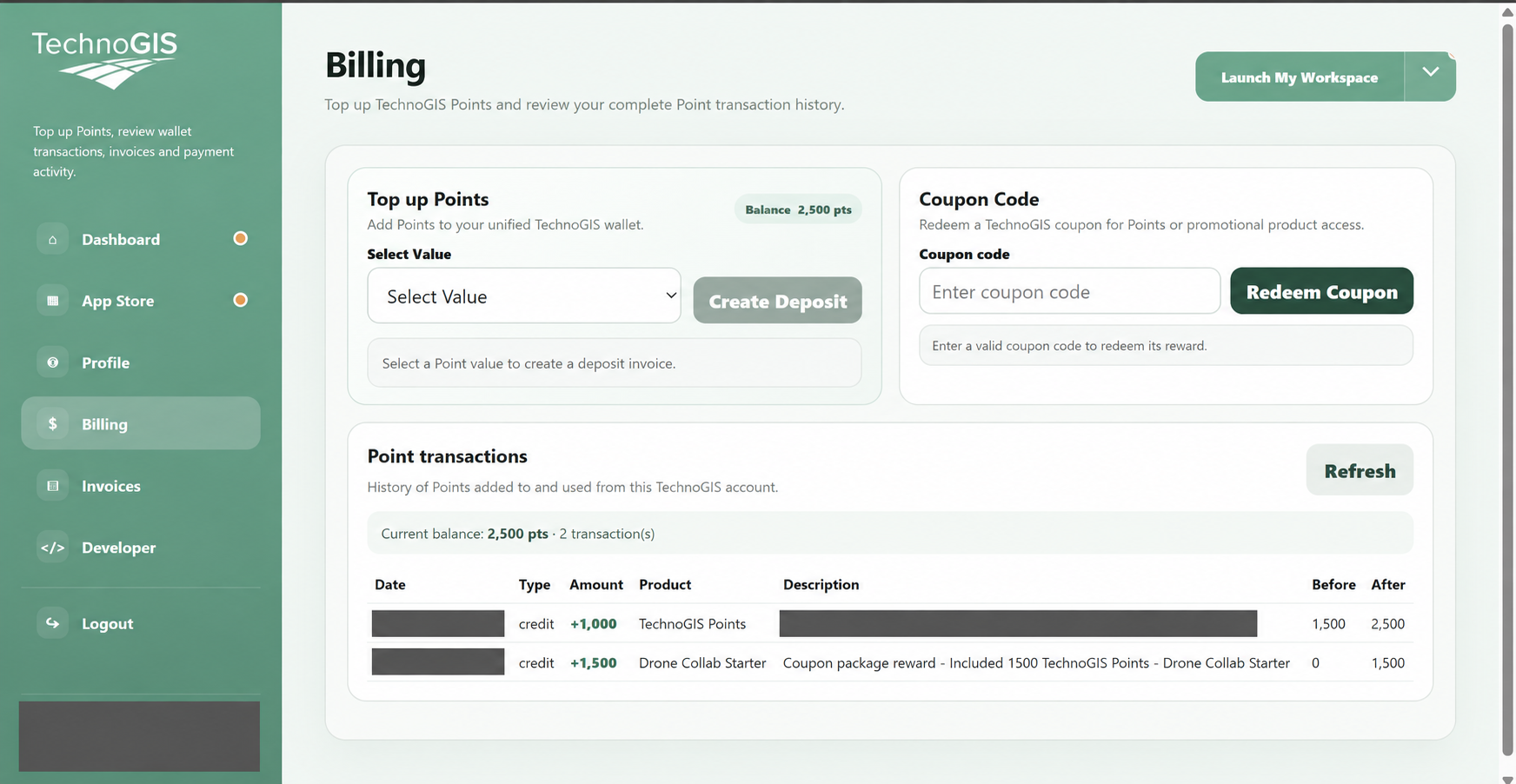
Top up DroneCollab points · Verify the new balance
Billing / Point transactions / Refresh

Top up DroneCollab points

Amounts shown are examples. Follow your invoice; personal details in the screenshots have been hidden.

Open workspace ↗